In short
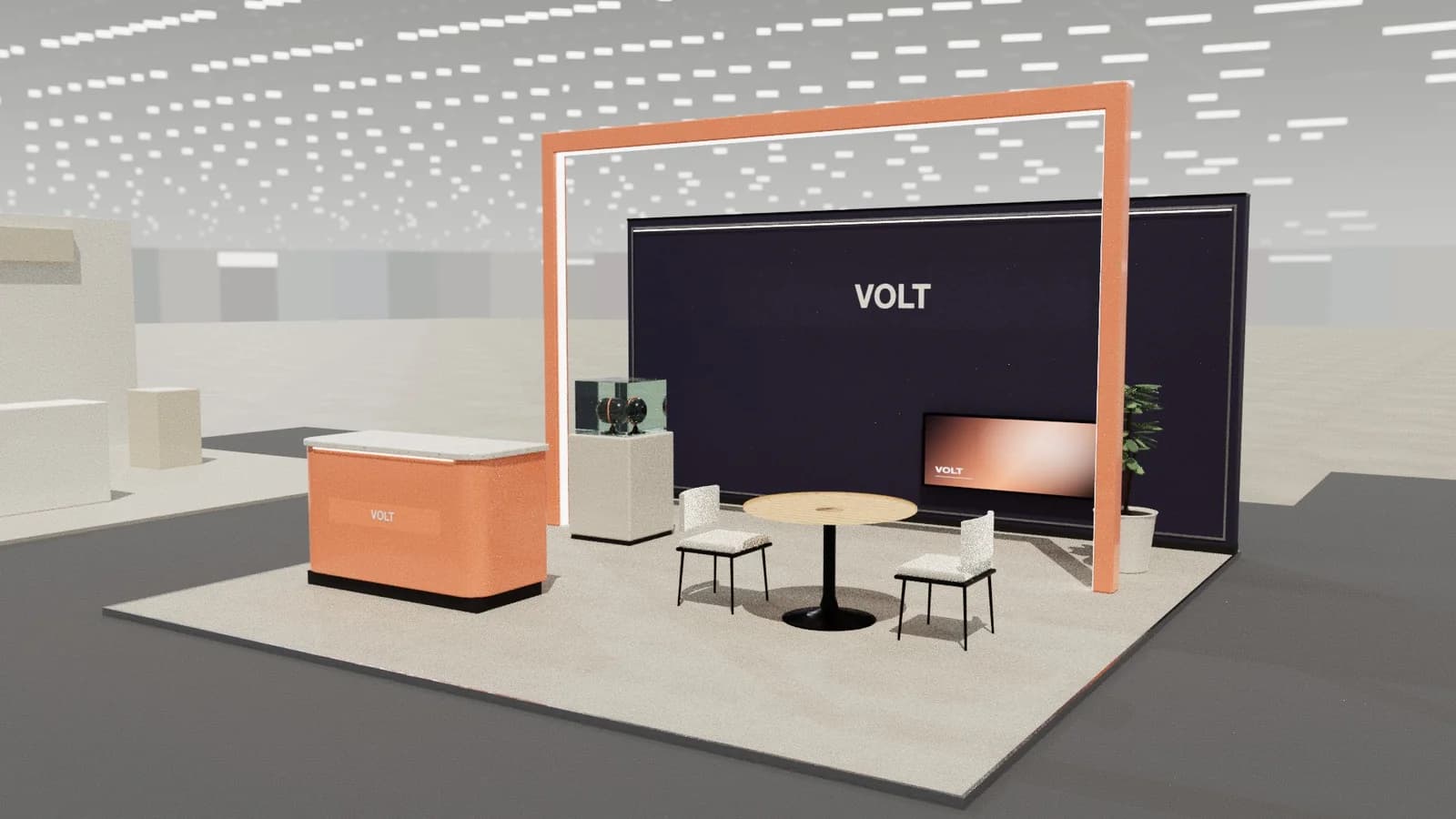
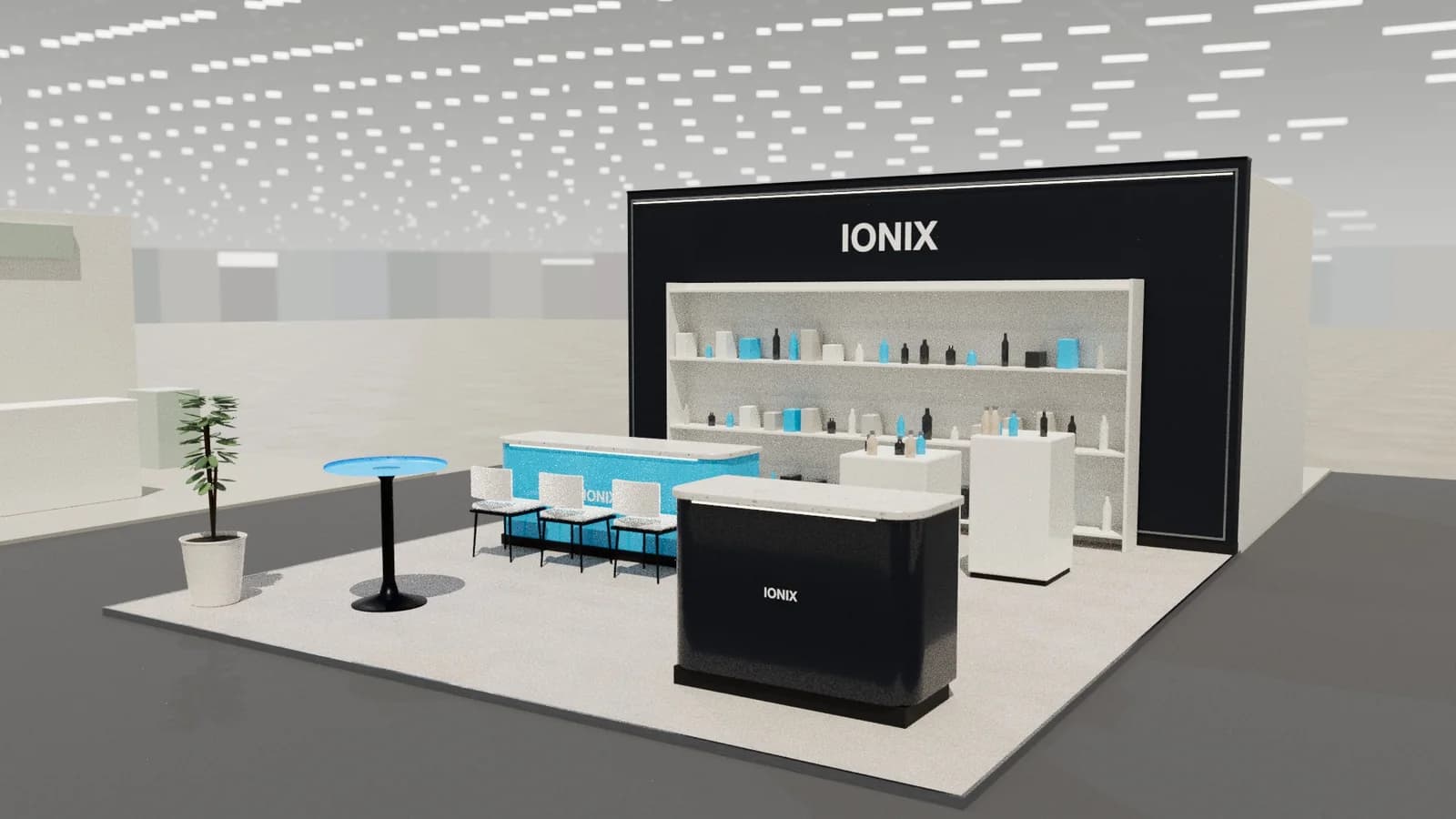
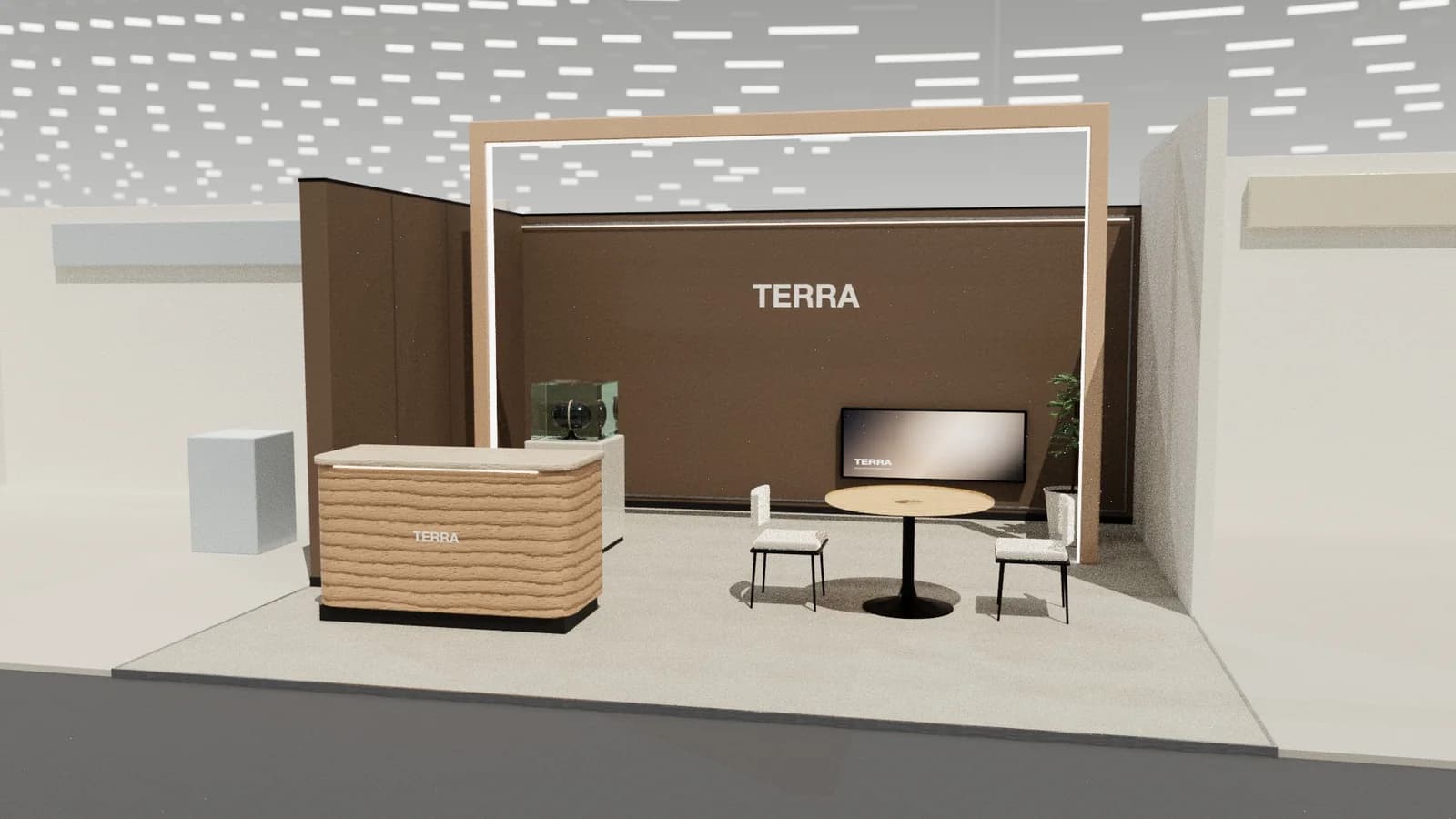
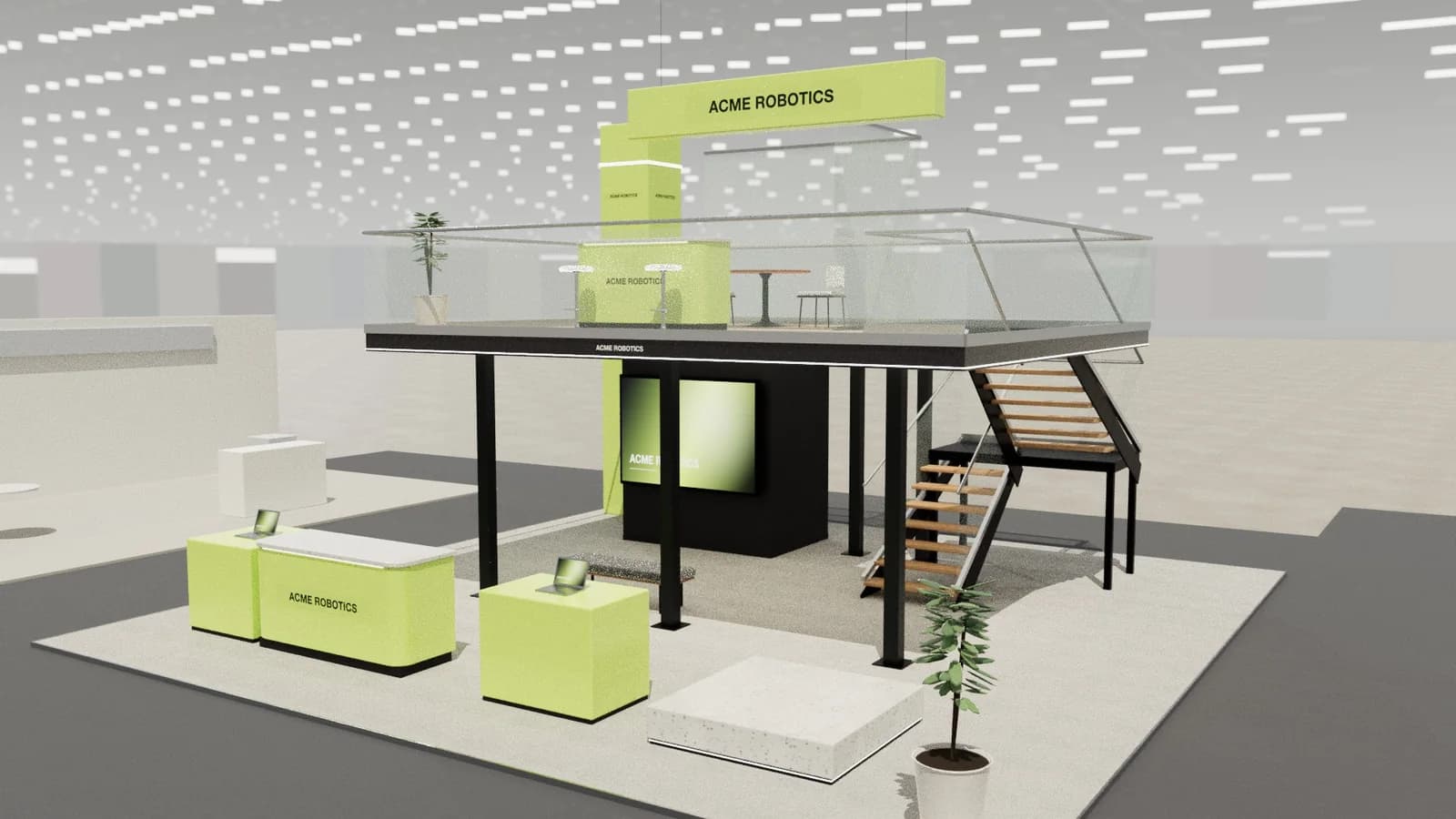
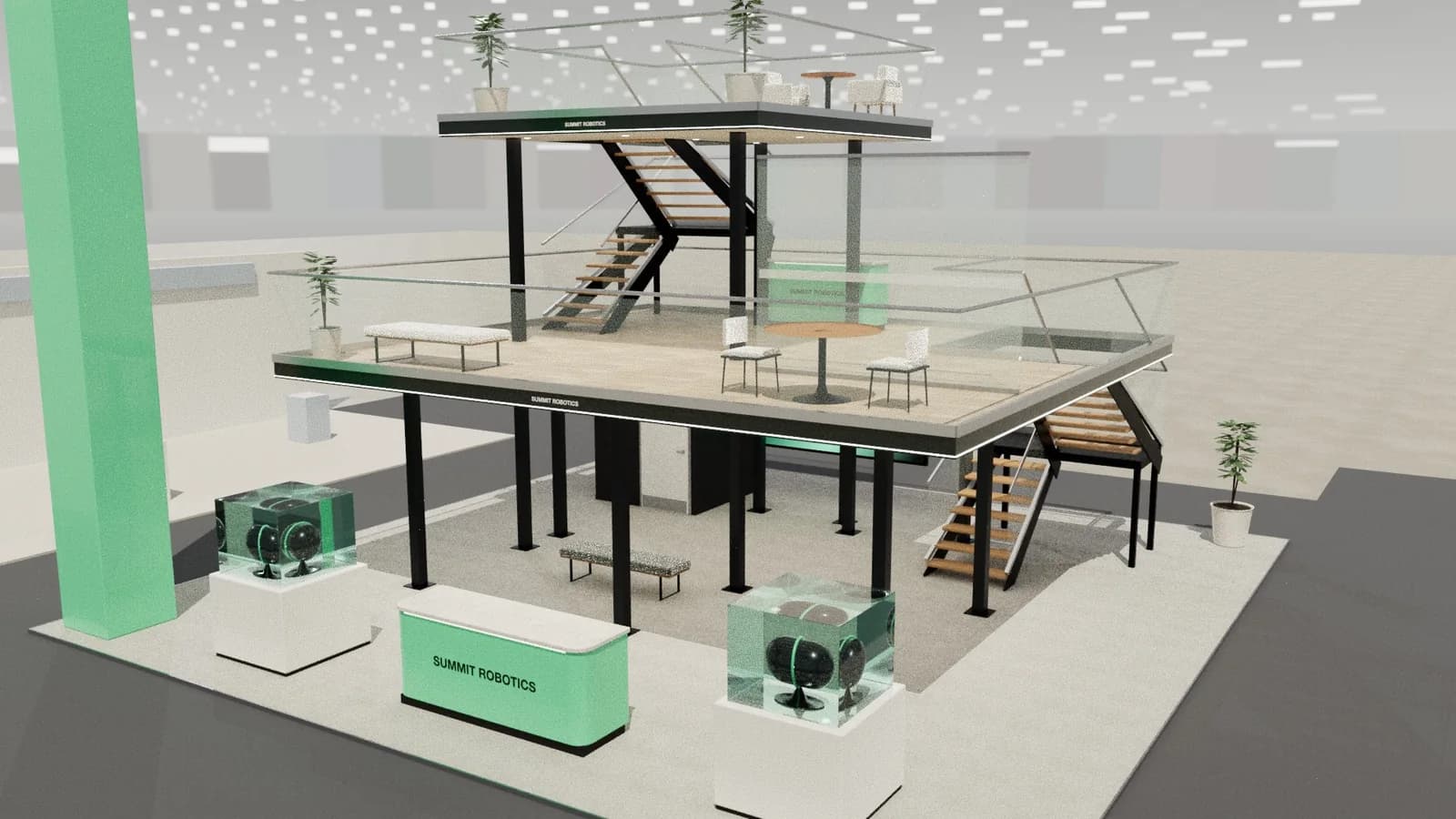
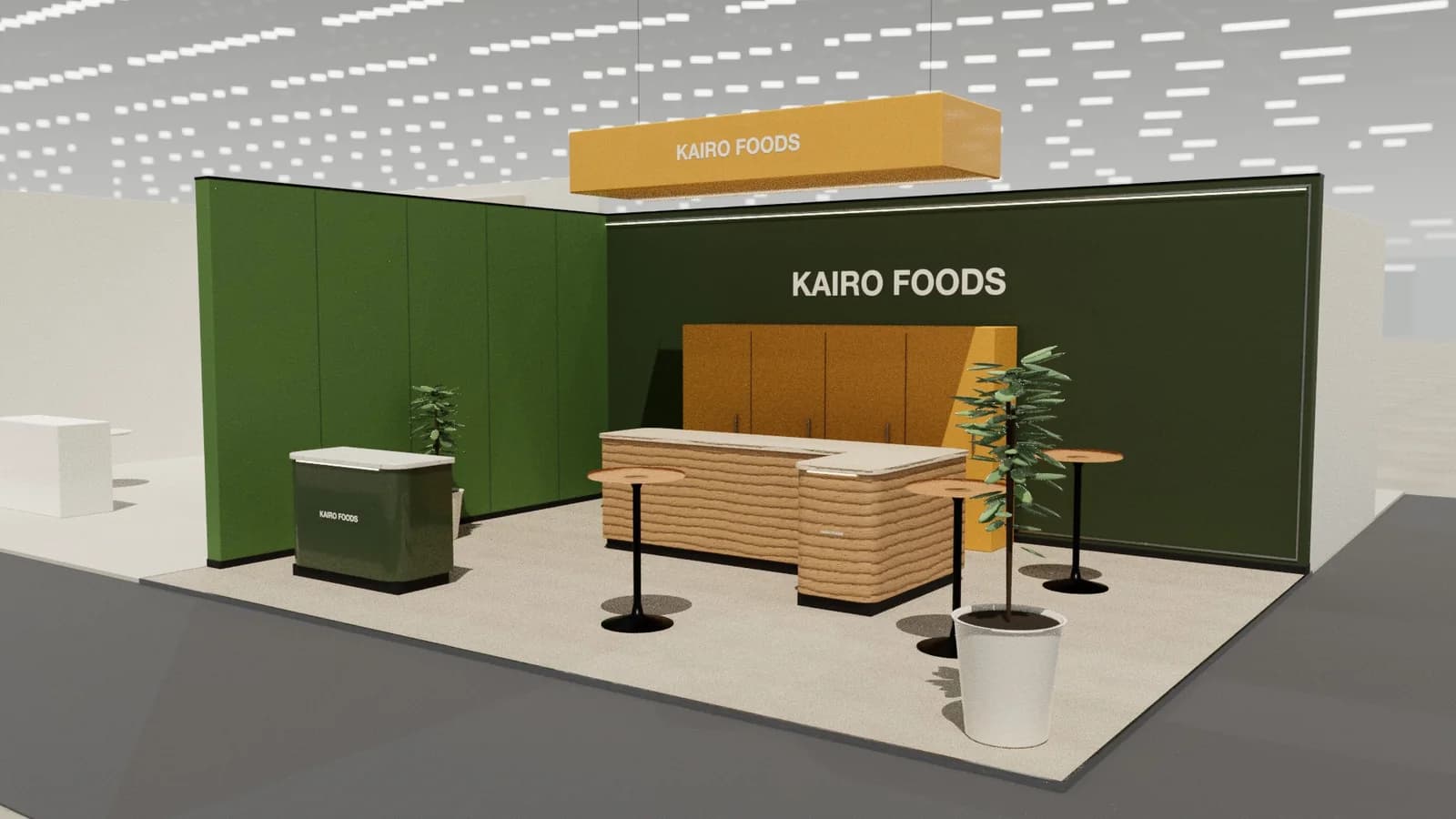
A ready-made item library lets you assemble a stand from real-size pieces instead of drawing each one. Studio's library holds 68 items, such as reception counters, seating, meeting sets, bars, displays, walls, ceilings, lighting, greenery, installations and screens. You place them in the 3D editor with one click, using no AI and no credits. It's a fast way to adjust an AI concept or lay out a simple stand yourself.
Key points
- 68 items, at real sizes.
- One click in the editor, with no AI involved.
- No credits used for placing an item.
- Items appear in drawings and quantities like any other object.
What's in the library
| Category | Examples |
|---|---|
| Reception | Counters and desks |
| Seating and meeting | Benches, stools, tables and meeting sets |
| Bar and display | Bars, coffee points, plinths, brochure stands |
| Walls and ceiling | Arches, curved pieces, brand rings |
| Lighting and greenery | Light features and planting |
| Screens and installations | Screens and feature pieces |
How to use it
- 01
Open a design
Start from an AI concept, a template or a blank stand.
- 02
Open the library
Browse the items by category.
- 03
Place an item
Click to add it, then move, rotate or resize it.
- 04
Check the view
Inspect routes and sight lines in 3D.
- 05
Export
Render it, or download the drawings.
Why real sizes matter
A stand layout fails when a counter or table is drawn too small. Items built at real sizes show immediately what fits on a 3 × 3 m stand. They also keep drawings honest, because an item in the library is a real object with a size, not a sketch.
What it costs
Placing items from the library uses no credits. An AI design costs 5 credits, a template 1 credit and a change to one selected item 1 credit. See pricing for packs. New workspaces get 5 free credits.
What a library doesn’t do
A library speeds up layout, but it doesn't decide what your stand should do. Start with the visitor's journey and your brief, and choose items to serve it. Items are concept objects at real sizes, not products you can order, so your builder still has to source or make each one.
Combining items with AI
Generating a design gives you a complete layout, and you can then swap one piece from the library. If you need something the library doesn't have, select an item and describe the change for a small credit cost.
Frequently asked questions
01Is the item library free to use?
Placing items uses no credits. You need a Studio workspace, which comes with free starter credits.
02Can I resize library items?
Yes, you can move, rotate and resize them in the editor.
03Do library items appear in drawings?
Yes. They're objects in the model, so plans and quantities include them.
04Can I build a stand using only the library?
Yes. A simple stand can be laid out by hand without any AI.
Put it into practice
Generate a 3D exhibition stand you can edit
Generate an editable 3D exhibition stand from your brief, refine the layout and export renders, CAD drawings and the model.
Guidance here reflects common practice. Venues, organisers and countries set their own rules: always check the exhibitor manual and work with a qualified stand builder and engineer for structures.