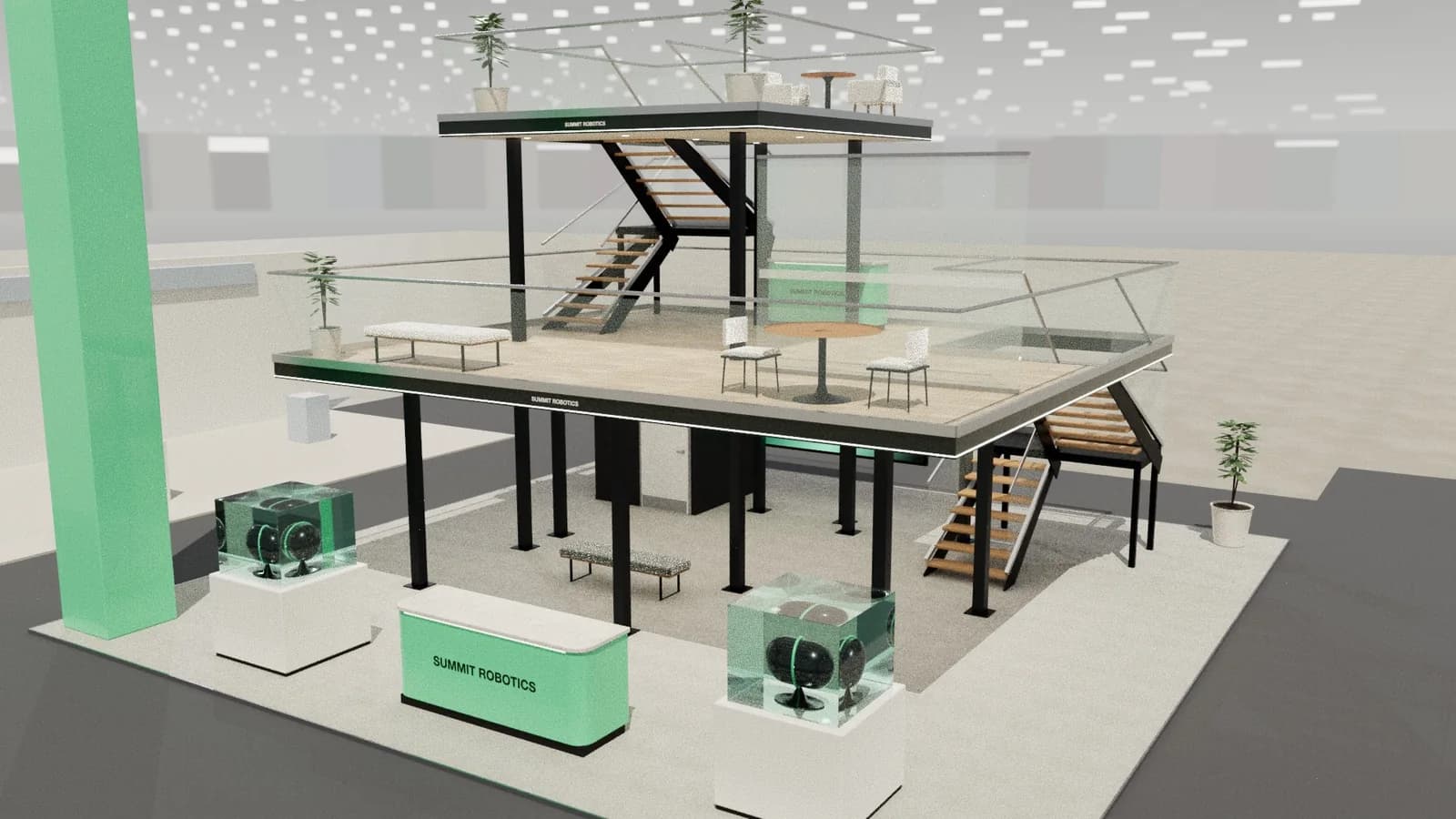
Technical drawings
Exhibition stand technical drawings, drawn from the 3D design
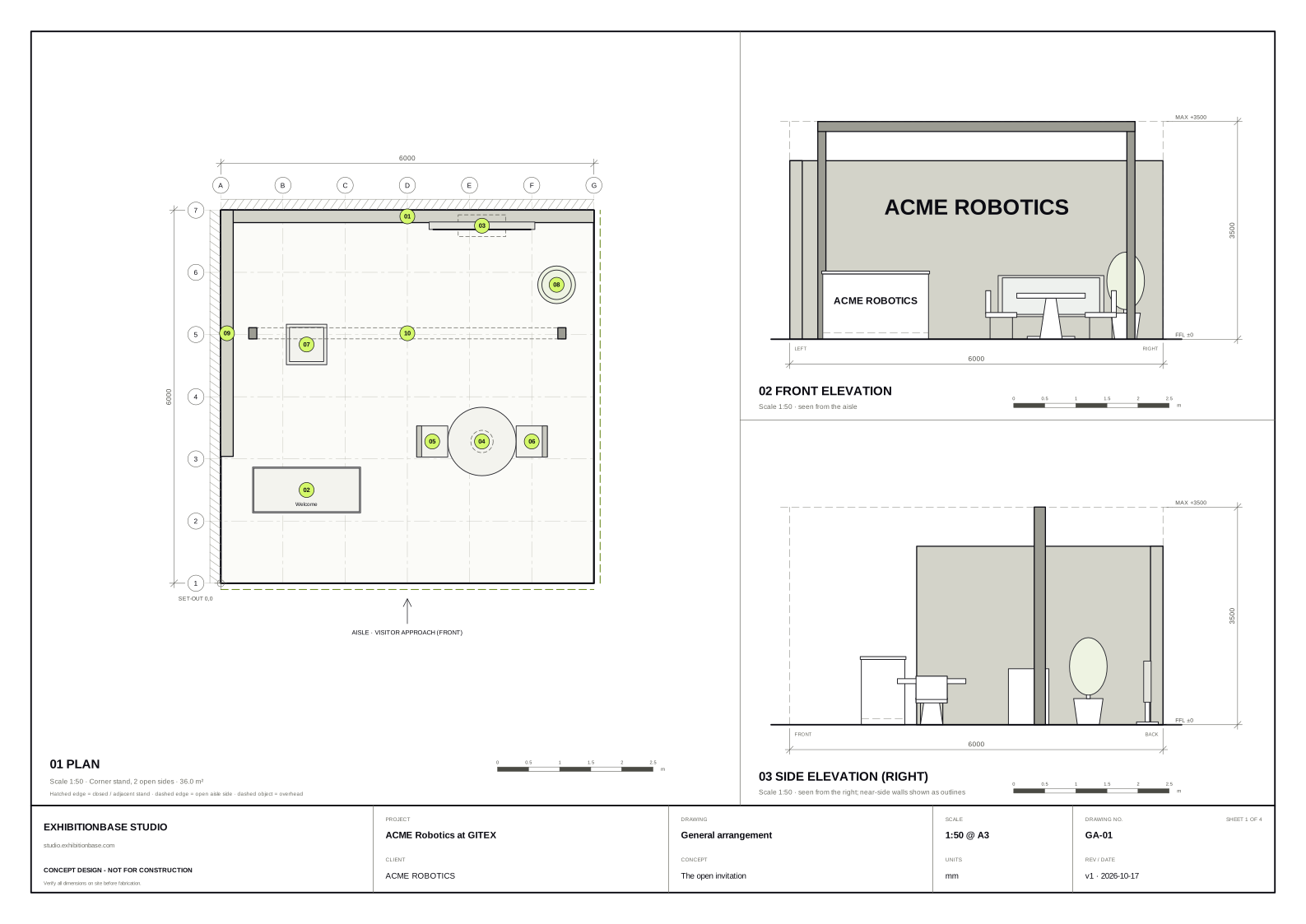
Every Studio design comes with a general arrangement your stand builder can read: a plan with set-out grid, front and side elevations, dimensions, a title block and an object schedule, at a standard scale on A3.
5 free credits · no card needed
In short
Exhibition stand technical drawings describe a booth for the people who build it: a dimensioned plan, elevations showing heights, and a schedule of every object. ExhibitionBase Studio draws them automatically from your 3D design at standard scales from 1:20 to 1:250 on A3, and exports them as a PDF drawing pack, SVG sheets and a layered AutoCAD DXF in millimetres.
Stand technical drawings
What you get.
Plan with set-out grid
Grid lines and bubbles every 0.5 to 5 m, a 0,0 set-out point at the front-left corner and overall dimensions.
Front and side elevations
Heights against the floor level and the maximum build height, with the side elevation taken from the open side.
Object schedule
Reference, item, size, set-out X and Y, rotation and finish colour for every object, also as a CSV for quoting.
Proper CAD layers
Walls, furniture, displays, structure, overhead items, grid, dimensions, open and closed sides each on their own layer.
Standard scales on A3
Studio picks 1:20, 1:25, 1:50, 1:100 or larger so plan and elevations fit one A3 sheet with a title block.
Always in step with the design
Drawings redraw every time the design changes, free. Export the latest version whenever you need it.
How it works
Three steps, no CAD skills needed.
- 01
Design or convert
Create a stand from a brief, or convert a render or sketch into a 3D model.
- 02
Open Drawings
See the general arrangement and schedule sheets update as you edit.
- 03
Export
Download the DXF for CAD, the A3 PDF pack for clients and builders, or the CSV schedule.
Goes in
What Studio uses
- Any Studio design
- Project and client name
- Stand type
Comes out
What you get back
- A3 PDF drawing pack
- AutoCAD DXF (R12, mm)
- SVG sheets
- CSV object schedule
- DXF
AutoCAD, BricsCAD, DraftSight
- PDF
A3 drawing pack with render
- SVG
Plan & elevation sheets
- CSV
Object schedule for quoting
- GLB
Blender, Unreal, web viewers
- OBJ
Rhino, 3ds Max, Cinema 4D
- WEBP
1K or 2K renders
- MP4
Walkthrough, reveal or orbit video
FAQ
Good to know.
01Are these construction drawings?
They are concept and design-development drawings: accurate to the 3D model and useful for quoting, planning and approvals, but not engineered. Structure, rigging, electrics and venue approvals stay with your stand builder.
02Which programs open the DXF?
AutoCAD, AutoCAD LT, BricsCAD, DraftSight, LibreCAD, QCAD and Vectorworks open it directly; SketchUp Pro and Adobe Illustrator can import it. It is an R12 DXF, the most widely supported version.
03Do drawings cost credits?
No. Drawings, the schedule and every export are free. Credits are only used by AI concepts, AI changes, image to CAD and renders.
04Can a stand builder build from these designs?
Studio produces dimension-controlled concept designs with plans, elevations and a schedule that are accurate to the 3D model, which is ideal for pitching, quoting and planning. Structure, rigging, electrics, fire safety and venue approvals still need your stand builder and the organiser.
More in Studio
Keep going.
Your next stand
Design the stand before the client asks twice.
Start with 5 free credits: enough for a complete AI stand design. Editing, drawings and exports are always free.