Render to CAD
Turn a booth render or sketch into an AutoCAD drawing
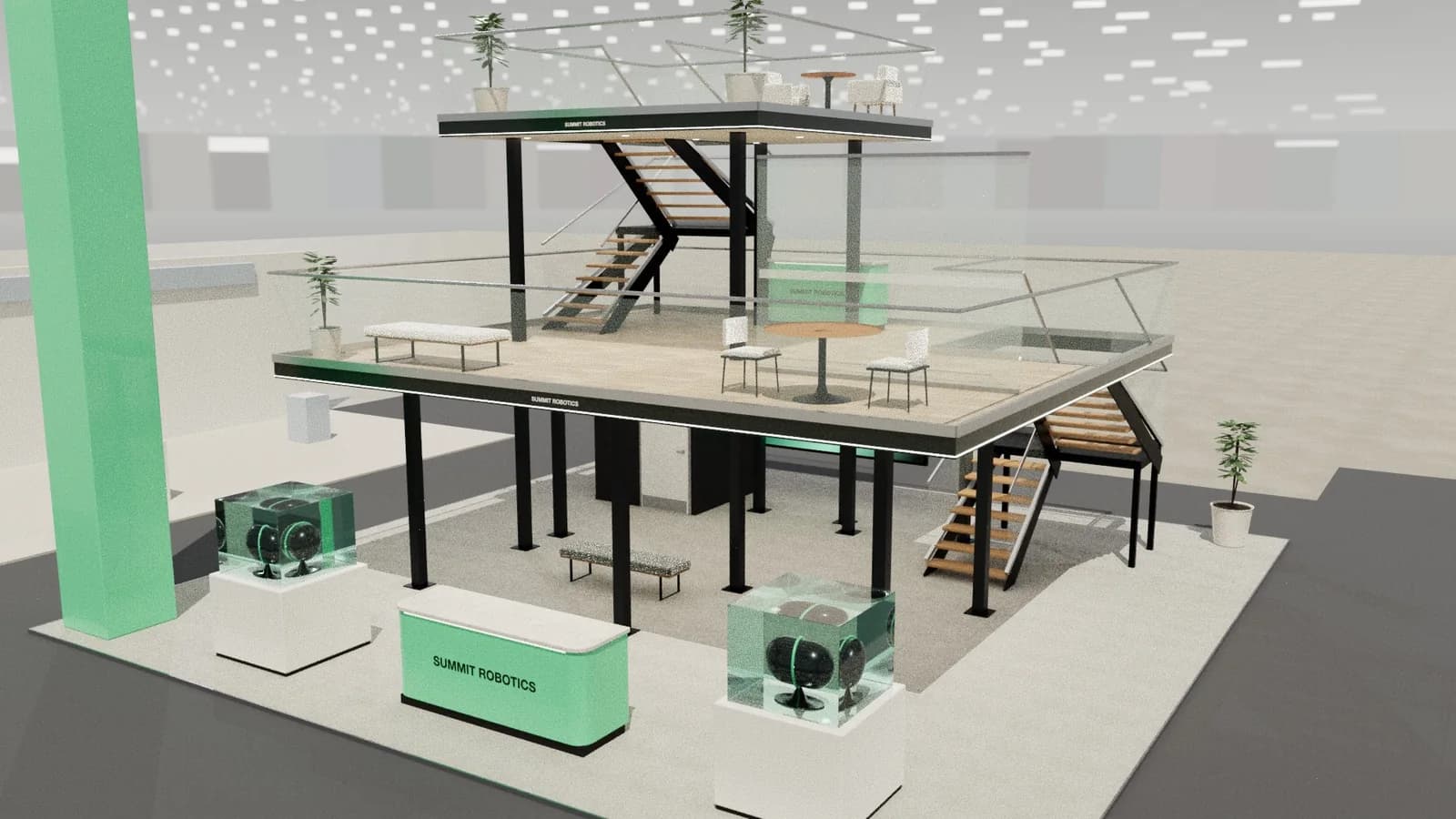
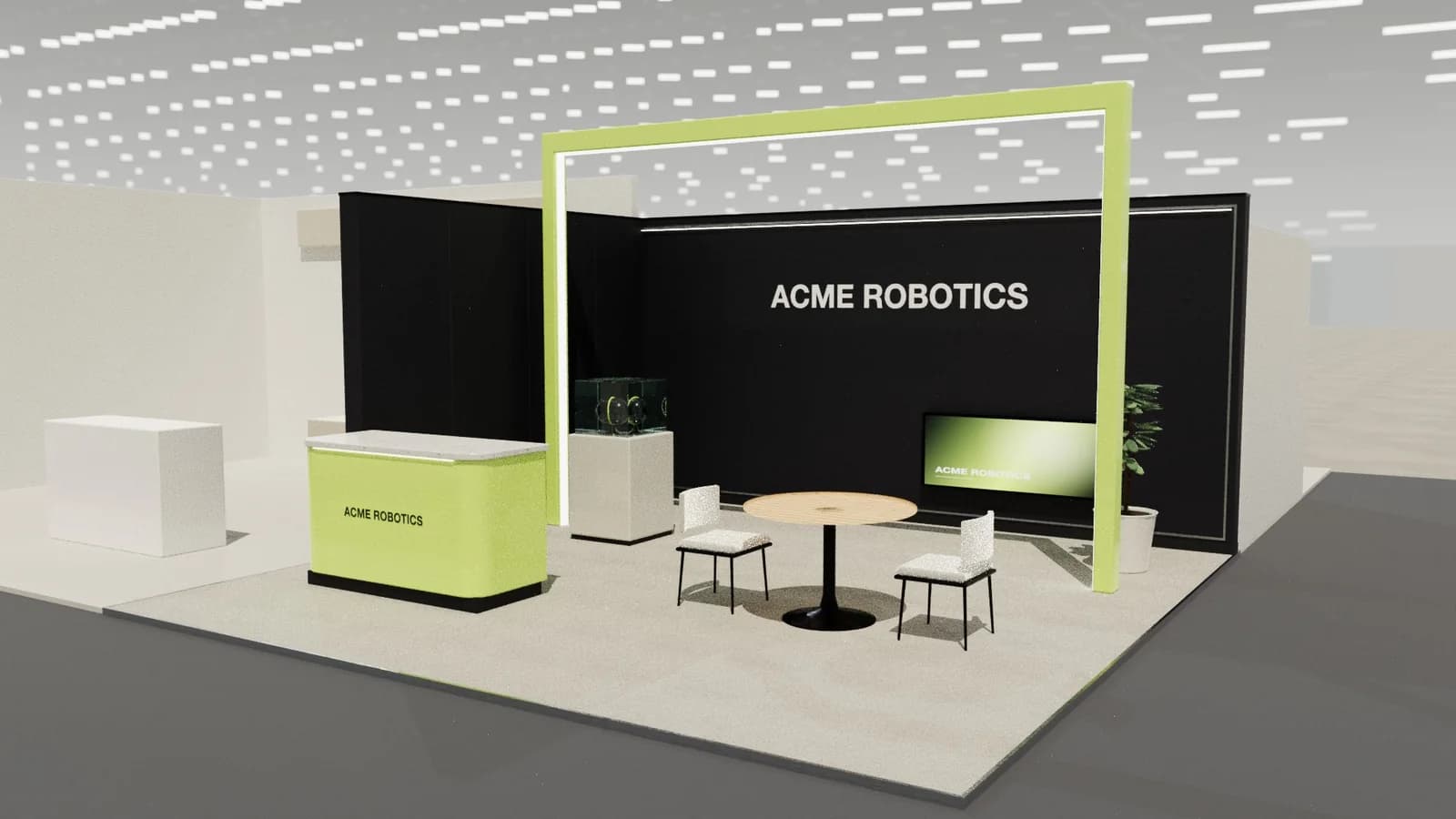
A render from a designer, a photo of last year's stand, a hand sketch: upload it with the stand's real width, depth and height. Studio rebuilds the walls, counters and furniture as editable objects and draws the plan and elevations in millimetres.
5 free credits · no card needed
In short
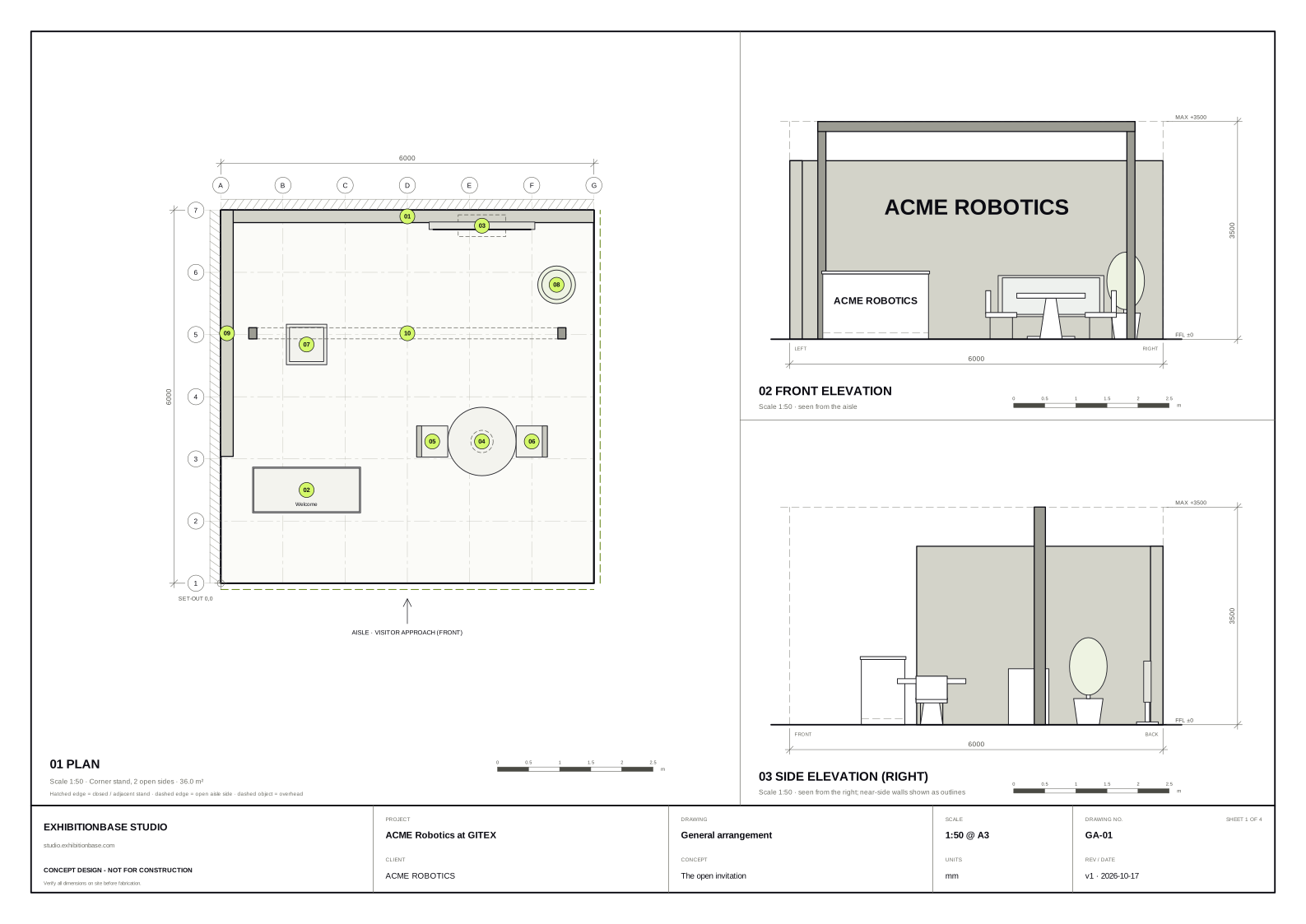
Render to AutoCAD conversion turns an image of a stand into CAD geometry. ExhibitionBase Studio reads the image with AI, uses the overall dimensions you confirm as the scale, and rebuilds the visible walls, counters, furniture and frames as an editable 3D model. You then export a layered DXF in millimetres that opens in AutoCAD, BricsCAD, DraftSight and other CAD software.
Render to AutoCAD
What you get.
Any image of a stand
Photoreal renders, site photos, perspective sketches and plan drawings in PNG, JPG or WebP.
Real scale from your numbers
You confirm the overall width, depth and height; every object is sized relative to them.
Objects, not traced pixels
Walls, counters, tables, screens and frames become separate objects you can move, resize and label.
Layered DXF in millimetres
Walls, furniture, displays, structure, overhead items, dimensions and notes on their own CAD layers.
Plan, elevations, schedule
The same general-arrangement sheets as every Studio design, ready for a stand builder to quote from.
Honest about estimates
Hidden or unclear details are marked as image-derived estimates on the drawing, never presented as surveyed.
How it works
Three steps, no CAD skills needed.
- 01
Upload the image
One clear image of the stand. Straight-on views and plans give the most accurate result.
- 02
Confirm the real size
Enter the overall width, depth and height. Conversion costs 4 Studio credits.
- 03
Edit and export
Correct anything in 3D, then download the DXF, PDF drawing pack or 3D model.
Goes in
What Studio uses
- Render, photo or sketch
- Overall width, depth and height
- Stand type
- Notes about the image
Comes out
What you get back
- Editable 3D model
- AutoCAD DXF (mm)
- A3 PDF drawings
- Object schedule (CSV)
- GLB and OBJ
- DXF
AutoCAD, BricsCAD, DraftSight
- PDF
A3 drawing pack with render
- SVG
Plan & elevation sheets
- CSV
Object schedule for quoting
- GLB
Blender, Unreal, web viewers
- OBJ
Rhino, 3ds Max, Cinema 4D
- WEBP
1K or 2K renders
- MP4
Walkthrough, reveal or orbit video
FAQ
Good to know.
01Does it export DWG?
Studio exports DXF, AutoCAD's open exchange format, in millimetres with layers. Open it in AutoCAD and use Save As if you need a DWG file.
02How accurate is the conversion?
The overall dimensions are exactly what you enter. Positions and sizes of objects inside the stand are estimated from the image and labelled as estimates; check critical dimensions on site.
03Which images work best?
Clear, well-lit images where the whole stand is visible. A straight-on elevation or a plan view gives more accurate positions than a dramatic wide-angle render.
04Can I convert a floor plan PDF?
Export the page as a PNG or JPG first, then upload it. For exhibition hall floor plans with many stands, use ExhibitionBase's floor plan extraction instead.
05How much does Studio cost?
Studio runs on credits. Every workspace gets 5 starter credits once. Buy more when you need them: no subscription, no monthly charges and purchased credits never expire. An AI stand design costs 5 credits, a render 5 (8 in 2K) and image to CAD 4. Editing, drawings and exports are free. Top-up packs start at 100 credits for $15.
More in Studio
Keep going.
Your next stand
Design the stand before the client asks twice.
Start with 5 free credits: enough for a complete AI stand design. Editing, drawings and exports are always free.