In short
The best SketchUp alternative depends on the job: an AI stand generator for fast concepts with renders and drawings, Blender for free high-end rendering if you can model, AutoCAD or similar CAD for production drawings, and modular system suppliers' configurators if you build from one frame system. Most teams combine two of these.
Key points
- AI stand generators: fastest route from brief to 3D, renders and drawings.
- Blender: free and powerful for rendering, but a steep learning curve.
- CAD (AutoCAD and alternatives): precise drawings, slow for concepts.
- Supplier configurators: free, but limited to one system's parts.
- Pick by output: concept, render or production drawing.
The main alternatives
| Option | Best for | Trade-off |
|---|---|---|
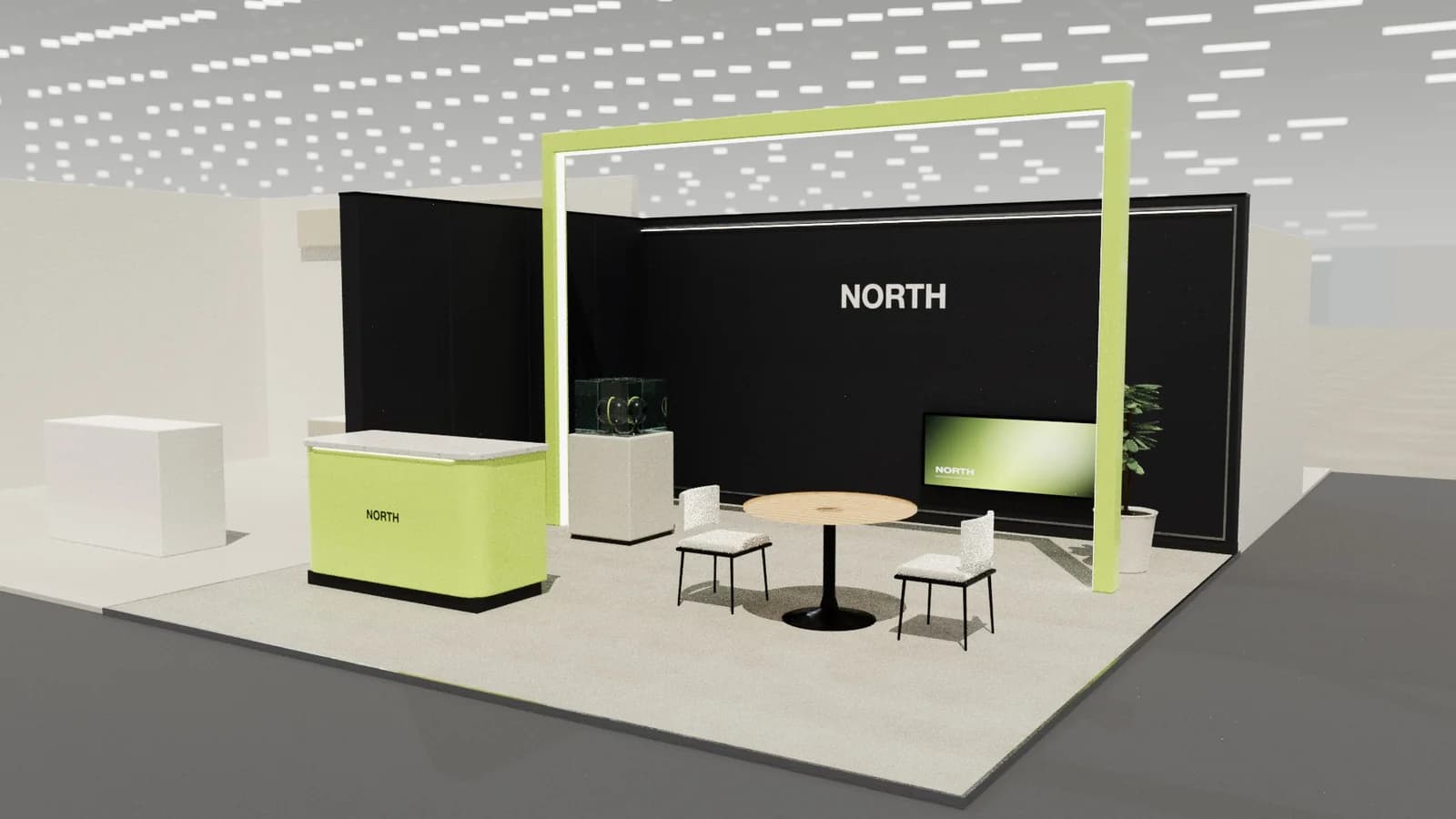
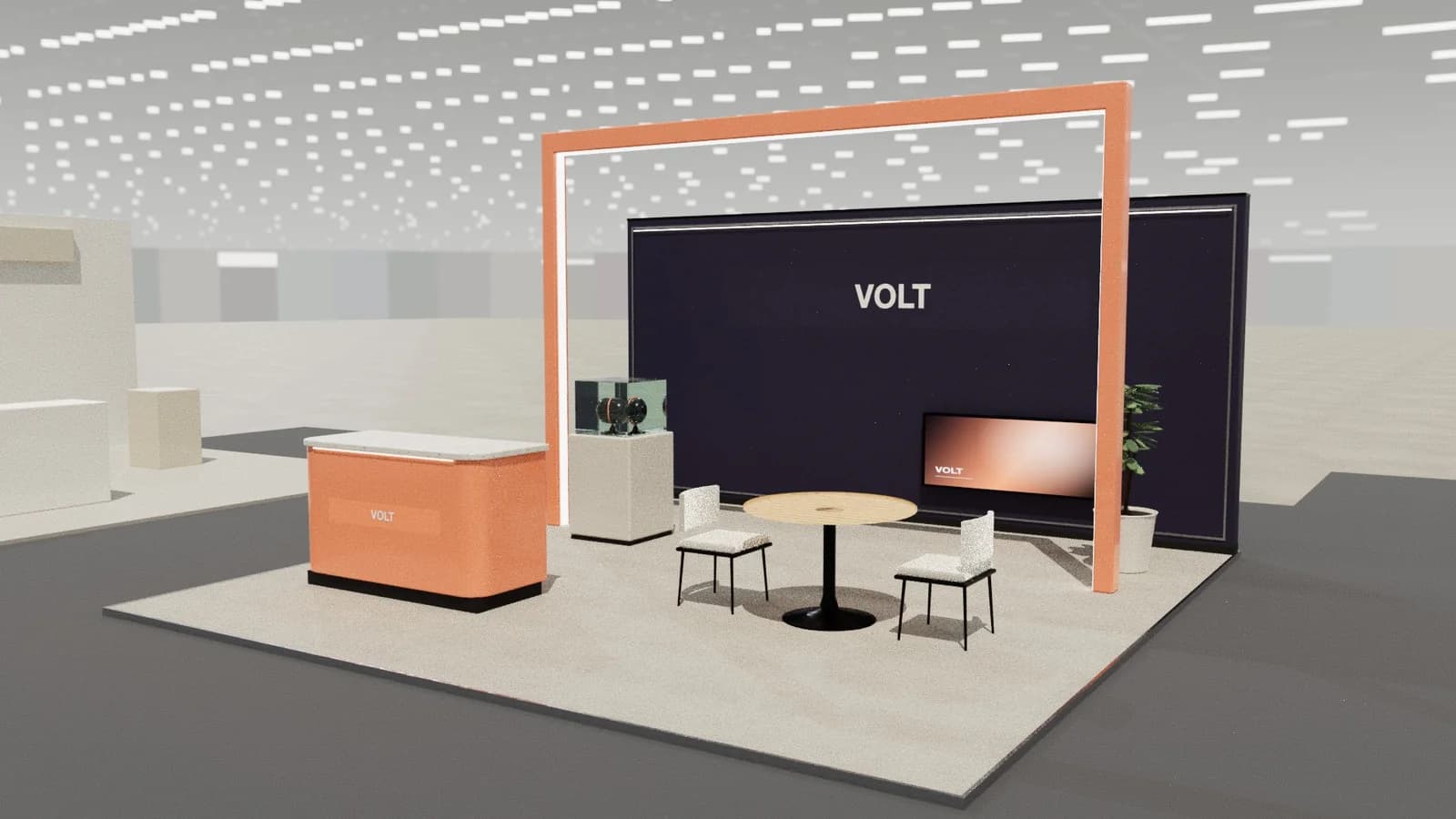
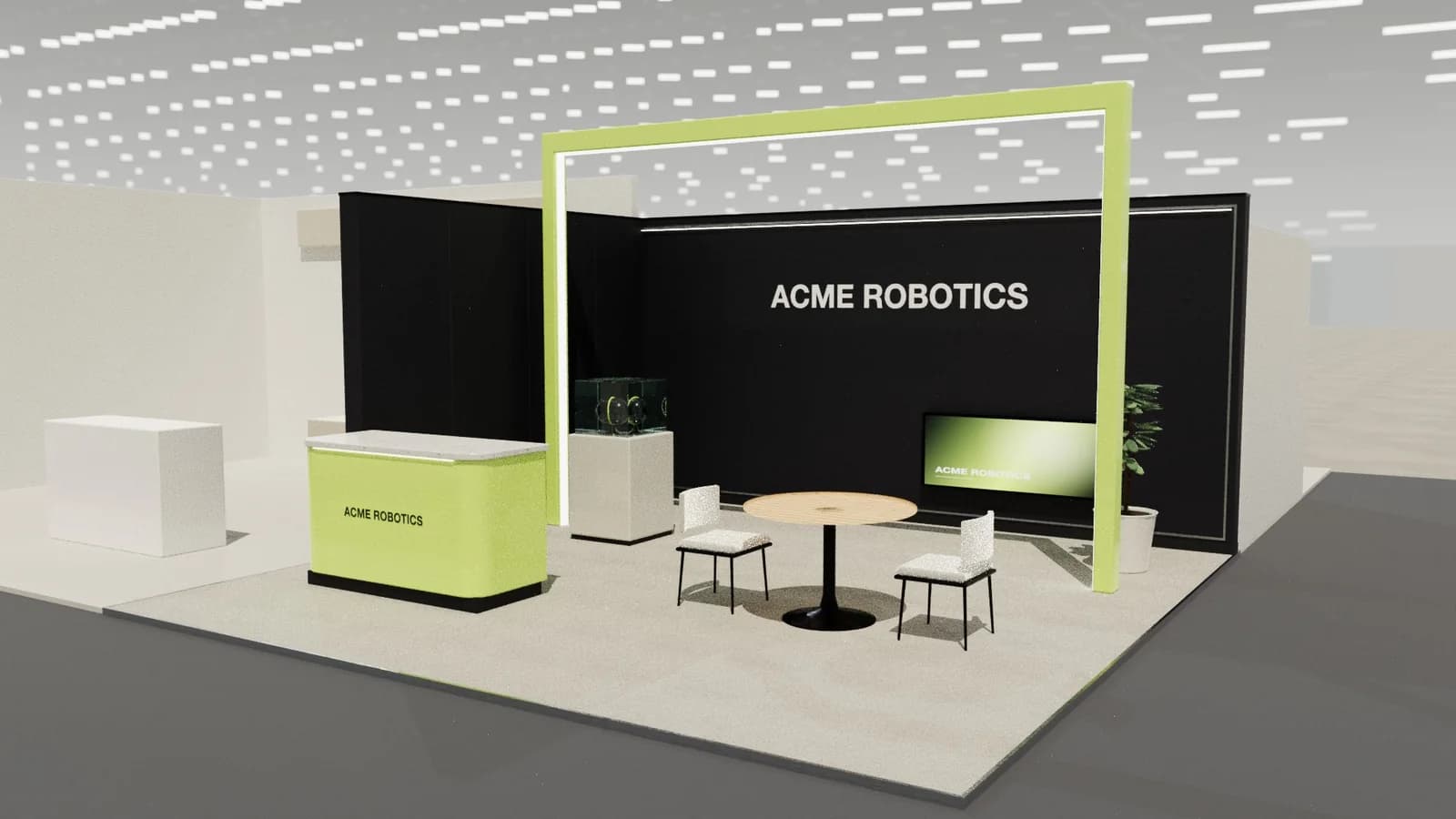
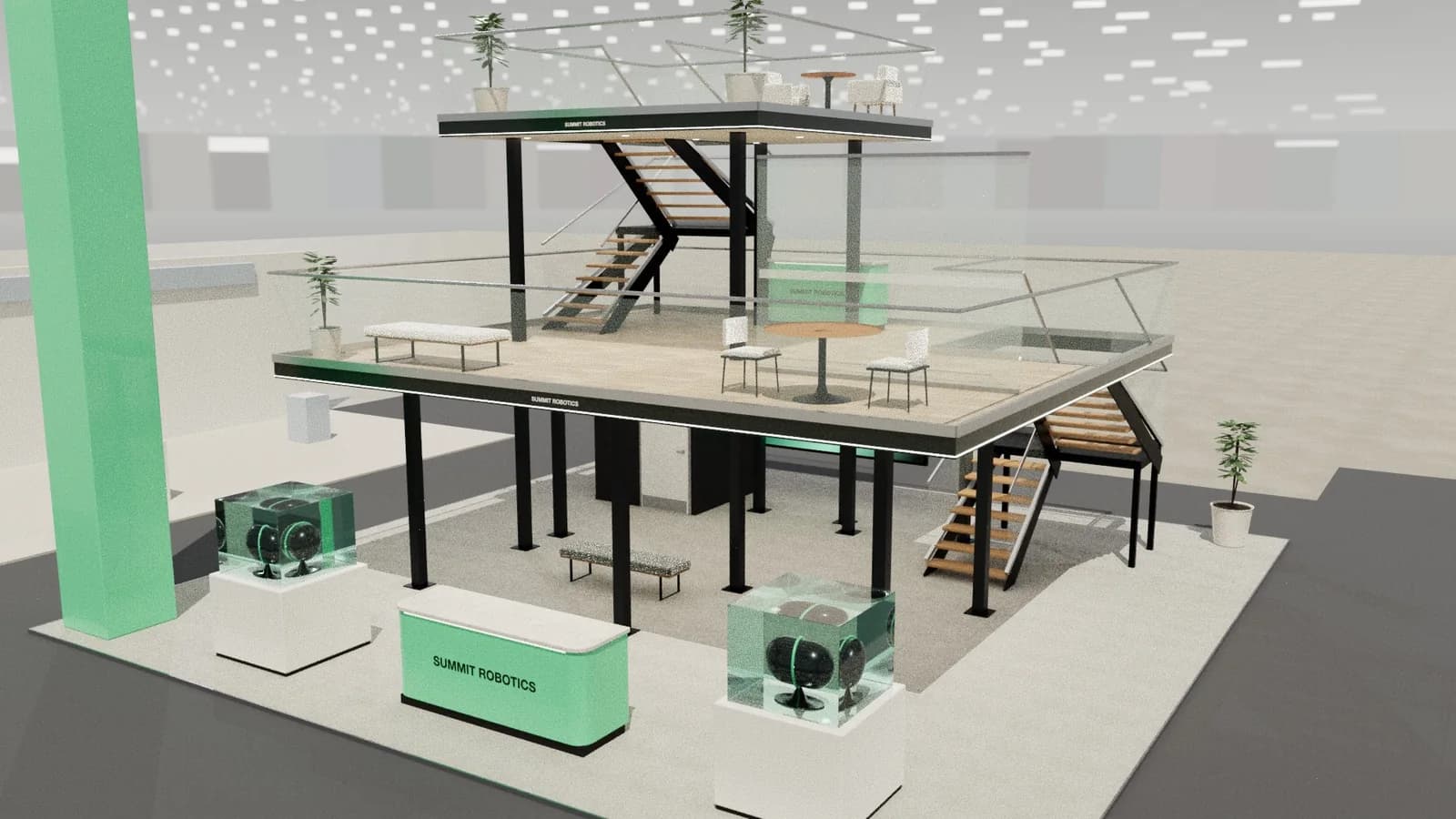
| AI stand generator (e.g. Studio) | Concepts, renders and drawings from a brief | Less fine control than manual modelling |
| Blender | Free, high-quality rendering and animation | Steep learning curve; not built for dimensioned drawings |
| AutoCAD and other CAD | Production and approval drawings | Slow for concept design and visuals |
| Modular system configurators | Stands built from one supplier's frame system | Only that supplier's components |
| Other 3D modellers (Rhino, 3ds Max, Vectorworks) | Professional design studios | Cost and training |
How to choose
- You need a concept today: an AI generator. Brief in, editable 3D out, then render.
- You need photoreal images and have 3D skills: Blender or a dedicated renderer.
- The builder needs drawings: CAD, or a tool that exports DXF such as Studio.
- You always build with one modular system: that supplier's configurator.
- You run a design studio: a professional modeller plus a renderer, with AI for early options.
A combined workflow
Start the concept in an AI generator, agree the layout with the client from a render, export DXF and a 3D model, and develop production details in your CAD or modelling tool. This keeps the expensive design hours for the decisions that need them. Read our comparison of AI stand design tools for more.
Pitfalls when switching tools
- Losing scale: check that exports keep real units (Studio's DXF is in millimetres).
- Assuming an AI image is a design: only a 3D model has dimensions you can check.
- Rebuilding everything: import what you can rather than starting over.
Frequently asked questions
01What is the best free alternative to SketchUp for stands?
Blender is free and powerful but takes time to learn. For a quick concept, Studio gives new workspaces 5 free credits, enough for one AI stand design.
02Can AI tools export to CAD?
Some can. Studio exports layered DXF plans and elevations in millimetres; image-only AI tools cannot, because they never create a model.
03Is Blender good for exhibition stands?
For rendering and animation, yes. For dimensioned drawings and quick layout changes, it is less convenient than CAD or a stand-specific tool.
04Do stand builders accept models from AI tools?
They accept DXF, DWG and common 3D formats. What matters is that dimensions are real and checked; the builder still engineers the stand.
Put it into practice
Generate a 3D exhibition stand you can edit
Generate an editable 3D exhibition stand from your brief, refine the layout and export renders, CAD drawings and the model.
Guidance here reflects common practice. Venues, organisers and countries set their own rules: always check the exhibitor manual and work with a qualified stand builder and engineer for structures.