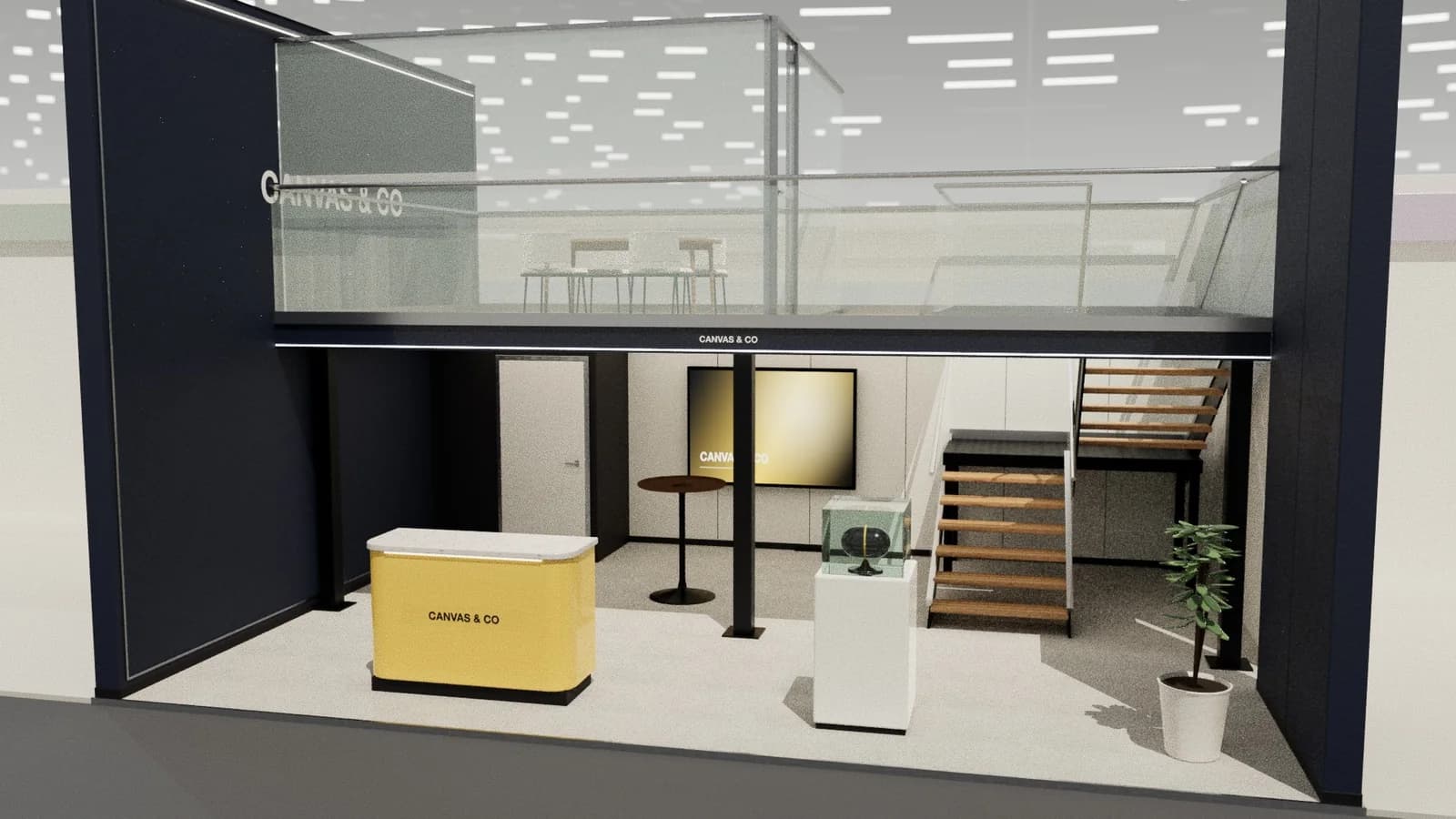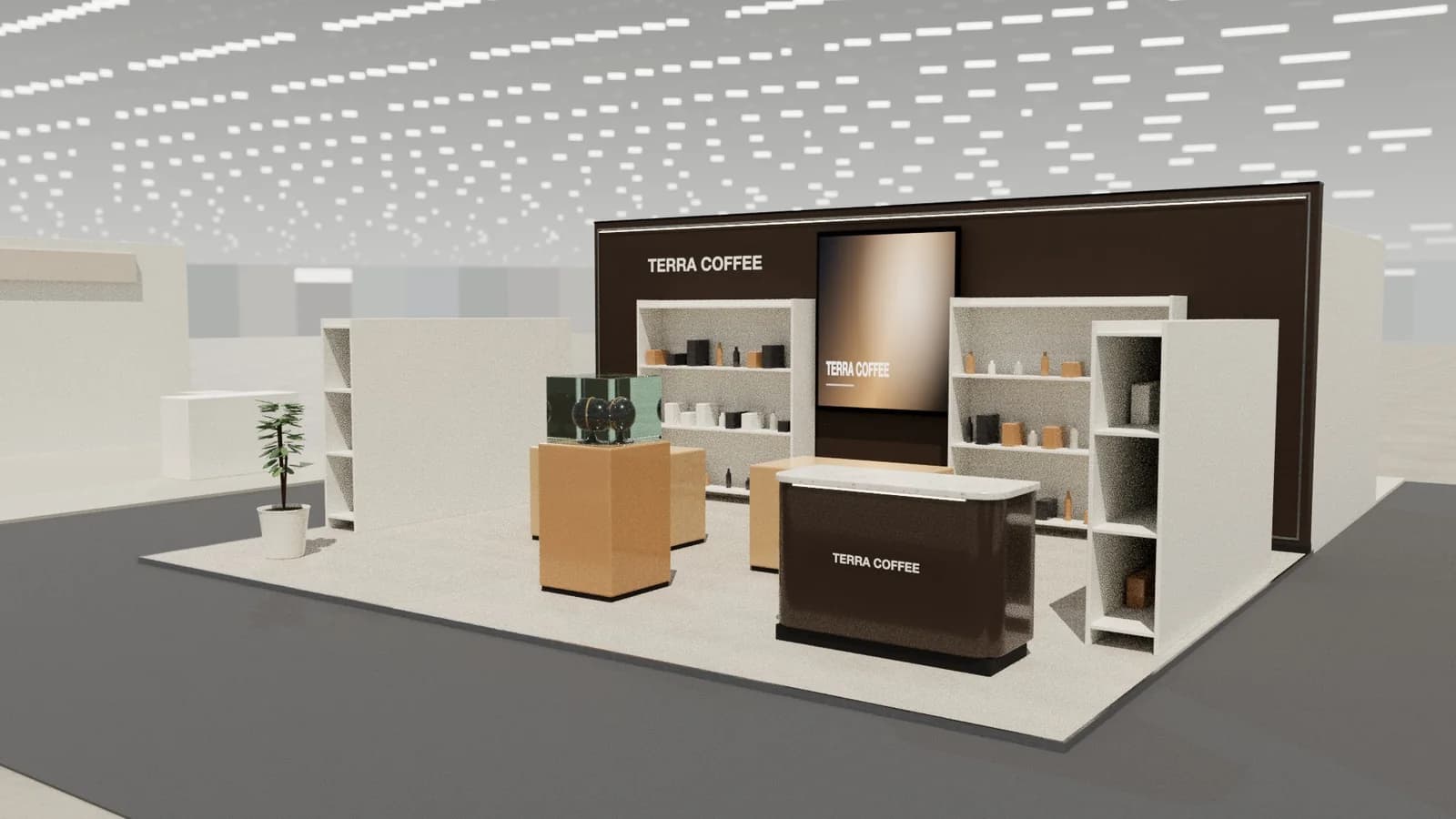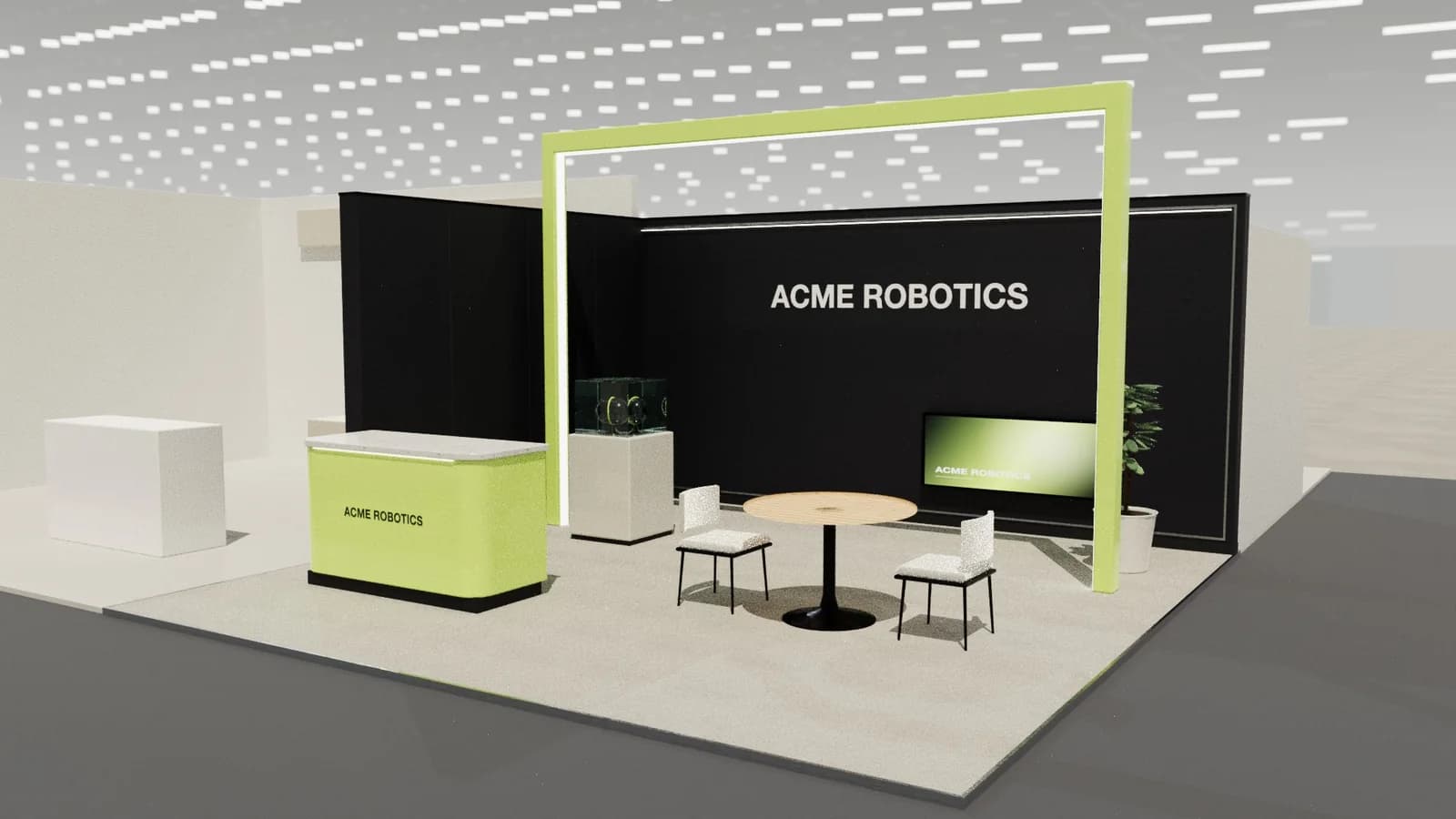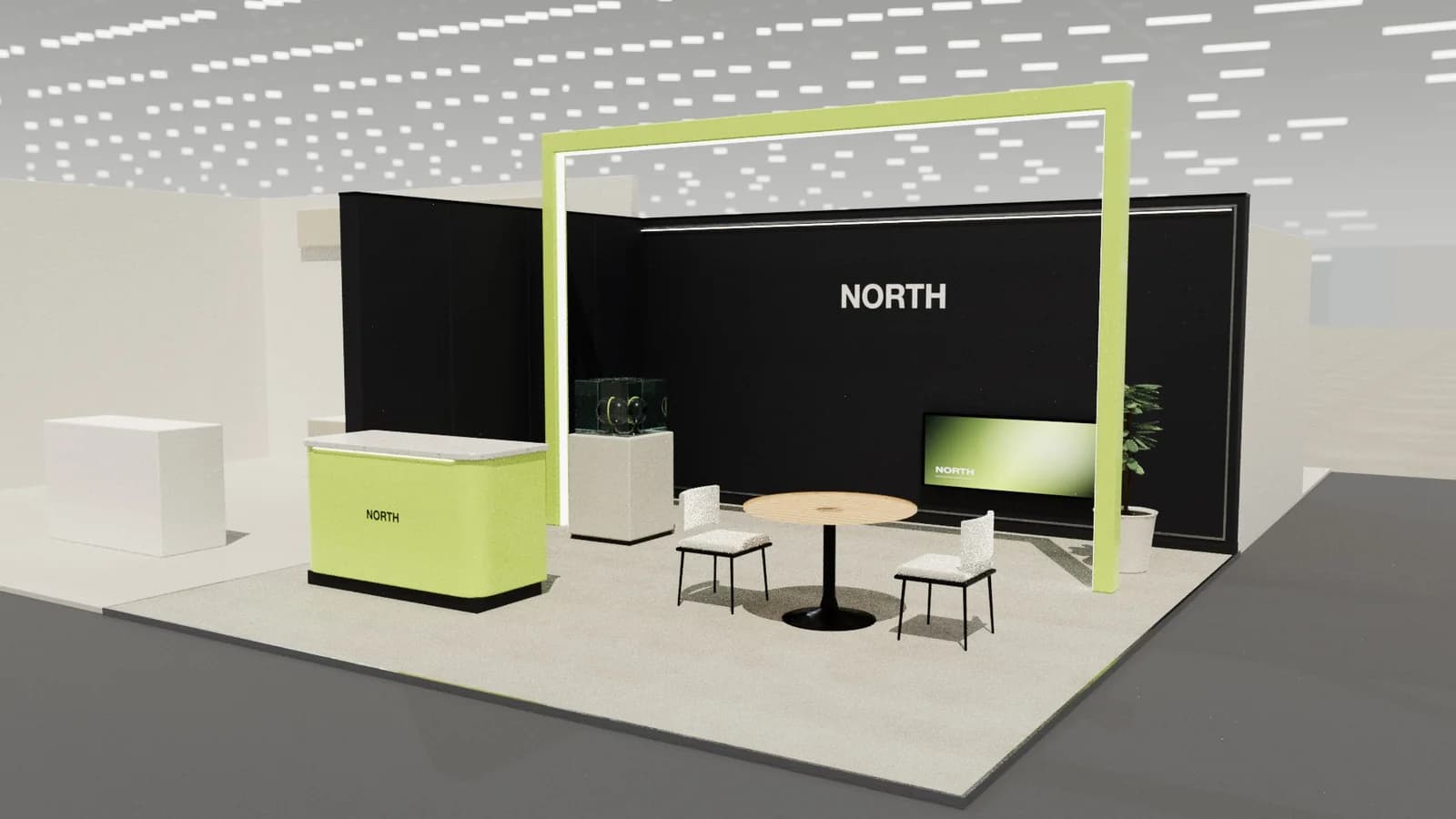
In short
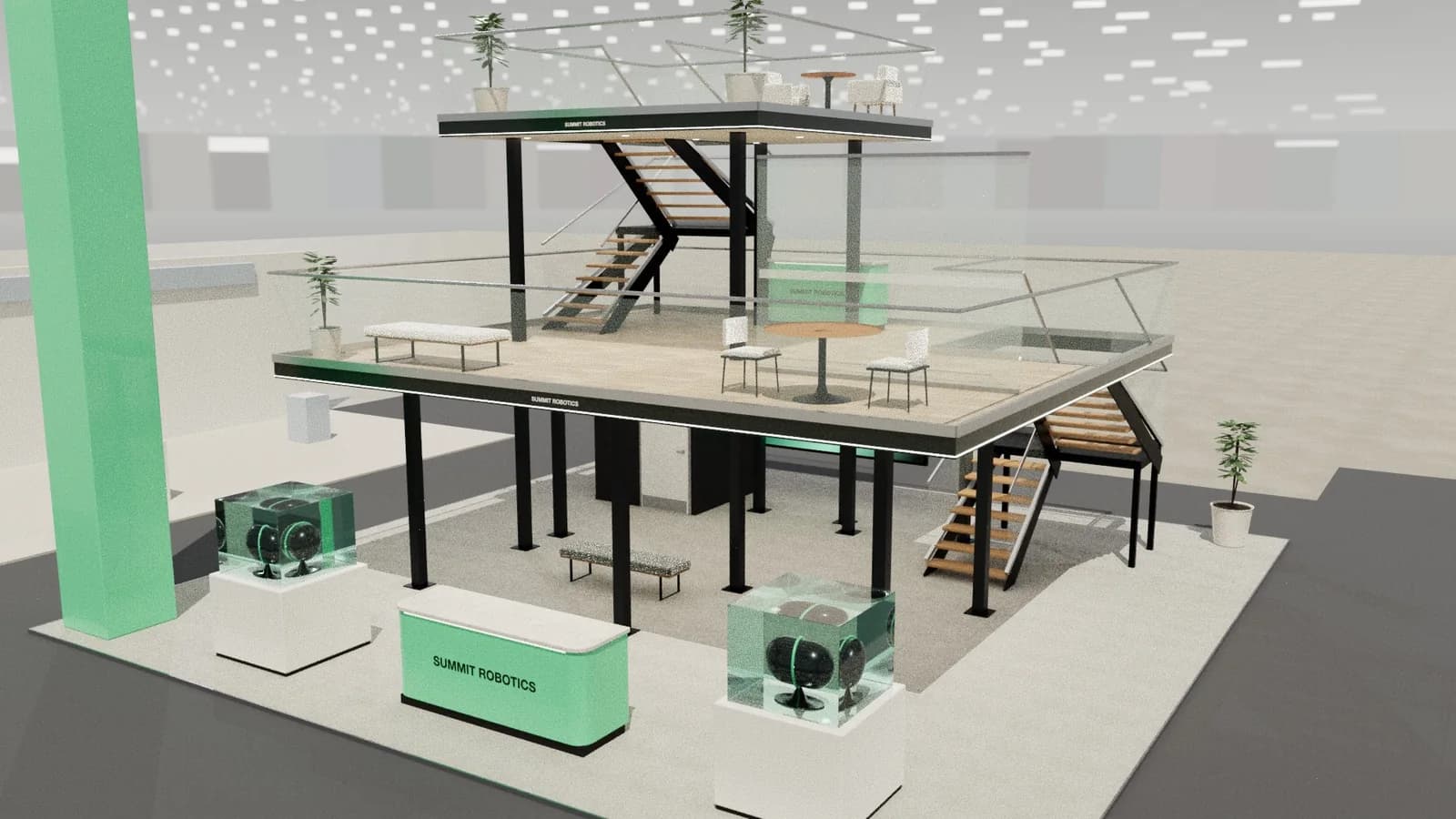
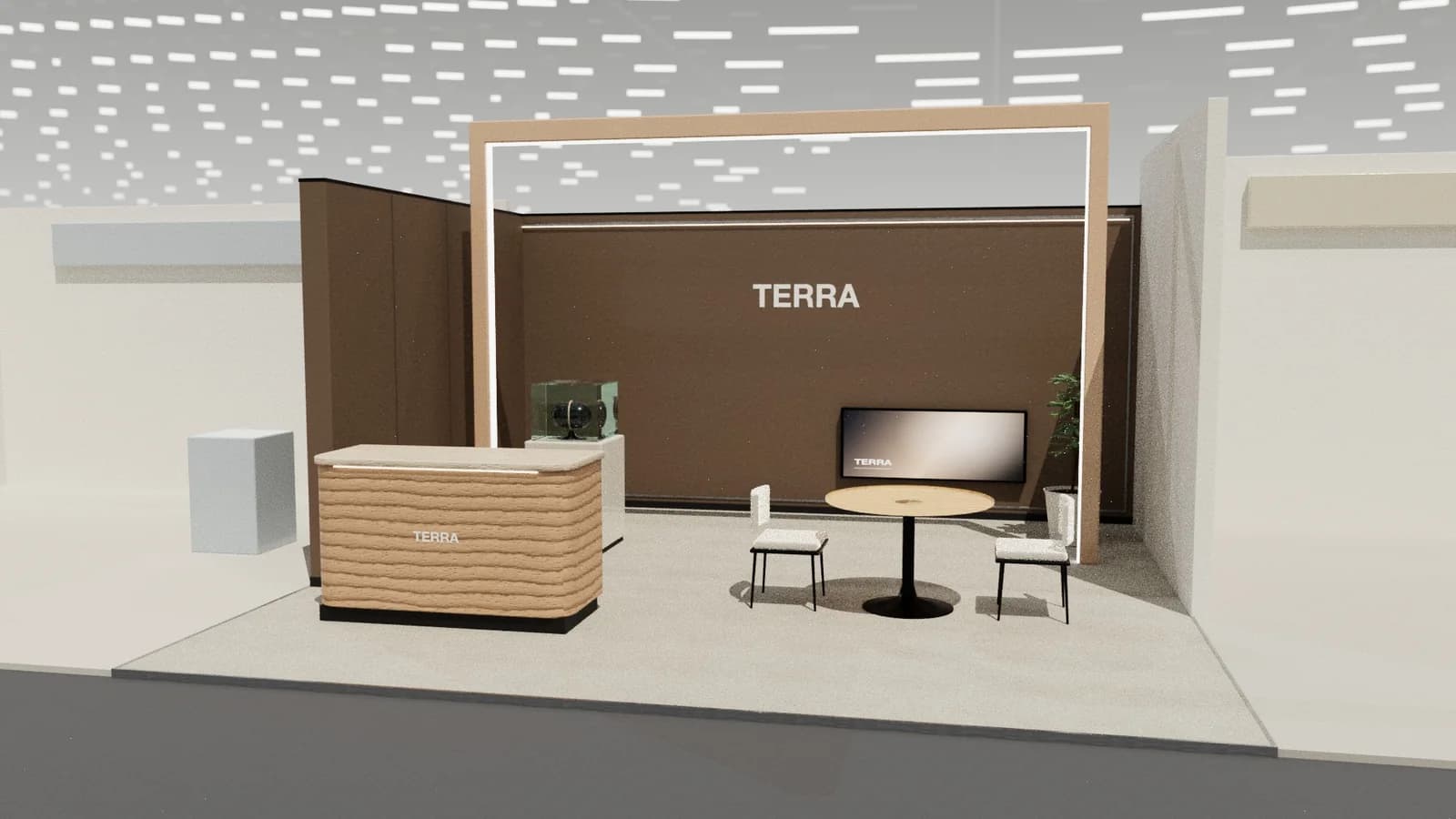
You can turn a stand render, photo or sketch into CAD by rebuilding it as a 3D model at real scale: confirm the overall width, depth and height, identify each object (walls, counters, screens, furniture), size them relative to the known dimensions, then generate plans and elevations. Hidden or ambiguous parts can only be estimated, so mark them as such and check with the designer before building.
Key points
- Known overall dimensions anchor everything else.
- Straight-on views and plans give the most accurate results.
- Hidden areas are estimates: label them on the drawing.
- Output objects, not traced lines, so the model can be edited.
- Always check key dimensions before fabrication.
When you need it
- A client sends a render from another agency and wants a quote.
- You have a photo of last year's stand and need to rebuild it.
- A sketch or AI image needs to become a buildable design.
What can and cannot be measured
| From the image | Accuracy |
|---|---|
| Overall size (given by you) | Exact |
| Visible walls, counters, screens | Good, relative to the overall size |
| Heights of visible objects | Good from straight-on views; fair from perspectives |
| Hidden areas (behind walls, inside rooms) | Estimated |
| Materials and finishes | Indicative |
The process
- 01
Choose the best image
Front or three-quarter view, high resolution, little obstruction.
- 02
Enter real dimensions
Overall width, depth and height from the brief or space booking.
- 03
Rebuild as objects
Each wall, counter, screen and piece of furniture as a separate sized object.
- 04
Correct in 3D
Fix anything misread; check doors, routes and heights.
- 05
Export drawings
Plan, elevations, schedule; DXF for the builder.
Checks before quoting
- Compare the model's 3D view with the original image side by side.
- Confirm key heights (walls, counters, screens) with the designer.
- Check hidden rooms have doors and routes are wide enough.
- State on the drawing that dimensions are derived from an image.
Tips for photos of existing stands
- Shoot straight on from the aisle at eye height, plus a shot from each open side.
- Include a known dimension in the frame, such as a standard door or a measured counter.
- Photograph details separately: counters, shelving, ceiling, flooring edges.
- Note the overall plot size from the space booking.
What the drawings are good for
- Quoting: builders can price from a schedule and dimensioned plan.
- Feasibility: check the design fits the booked space and height limit.
- Redesign: edit the rebuilt model to adapt last year's stand to a new space.
- Approval packs: a starting point, once key dimensions are confirmed.
Frequently asked questions
01Can AI convert a render to AutoCAD?
AI can identify objects and estimate their sizes from an image and your overall dimensions, then output an editable model and DXF. Hidden details remain estimates.
02How accurate is image-to-CAD?
Good for visible objects relative to known overall dimensions; less certain for hidden areas and exact heights in perspective views.
03What image works best?
A clear, high-resolution straight-on or three-quarter view, or a plan, with few people blocking the stand.
04Is the output a DXF or DWG?
Studio exports DXF (R12, millimetres, layered), which opens in AutoCAD and most CAD software.
Put it into practice
Turn a booth render or sketch into an AutoCAD drawing
Turn a booth render, photo or sketch into an editable 3D model and a layered AutoCAD DXF at real scale.
Guidance here reflects common practice. Venues, organisers and countries set their own rules: always check the exhibitor manual and work with a qualified stand builder and engineer for structures.